
Features
Proxy History
Review, filter and export every packet InterceptSuite processes, with Wireshark-style search expressions and PCAP export.
Proxy History
Complete packet history tracking and analysis in InterceptSuite.
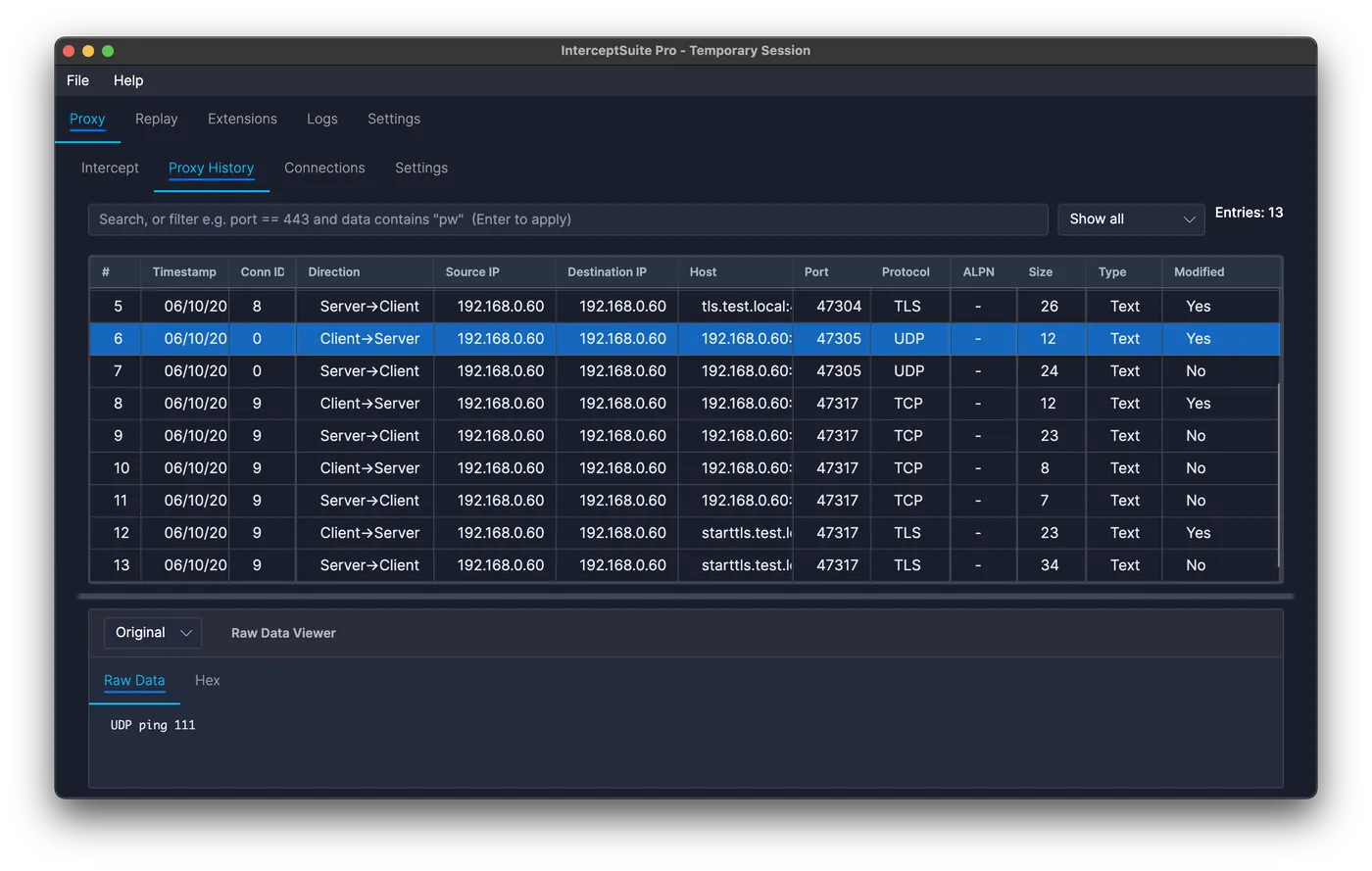
Overview
The Proxy History feature provides a comprehensive log of all network packets that have been processed through InterceptSuite. Use it to review, analyze, and track modifications to intercepted traffic over time.
Packet History View
Complete Packet Log
The Proxy History table shows every packet that passed through the proxy:
- Chronological order: Packets are listed in the order they were processed
- Complete metadata: Each entry includes protocol, direction, size, and modification status
- Click to inspect: Select any row to view the full packet content in the data viewer below
Columns
#, Timestamp, Conn ID, Direction, Source IP, Destination IP, Host (the domain the client used, or the IP), Port, Protocol, ALPN (for example h2 or h3), Size, Type and Modified. Host and ALPN are filled in for TCP, TLS, UDP, DTLS and QUIC.
Search and Filters
The search box accepts a plain text search, a regular expression, or a filter expression, for example:
port == 443 and data contains "token"
host contains "example.com" and protocol == QUIC
src_ip startswith "192.168." or size > 1000
not modified
Fields: src_ip, dst_ip, host, alpn, port, direction, protocol, size, type, modified, connection_id, data. Operators: ==, !=, <, <=, >, >=, contains, startswith, endswith, matches (regex), combined with and, or, not and parentheses. Press Enter to apply and clear the box to reset. port is always the server's port.
Next to the search box, the scope dropdown shows all, in-scope or out-of-scope traffic. See Scope.
Context Menu Options
Right-click any packet (or selection) to access management actions:
| Action | Description |
|---|---|
| Copy | Copy selected packets to clipboard |
| Remove Selected | Delete selected packets from history |
| Remove All | Delete all packets from history |
| Send to Replay | Open the packet in a new Replay session |
| Add to Scope | Add the packet's host, port and protocol to Scope |
| Export as PCAP | Export selected packets to a PCAP file |
| Select Output Directory | Choose the destination folder for the PCAP file |
Data Viewer Options
Raw Tab
- Purpose: View packet payload in human-readable plain text
- Editable: No -history data is read-only
Hex Tab
- Purpose: View packet bytes as a hex dump (offset, bytes, ASCII)
- Editable: No -history data is read-only. To change and resend a packet, use Send to Replay
Modification Tracking
Modified Column
The proxy history tracks whether each packet was modified before forwarding:
- The Modified column displays Yes or No for each packet
- This is automatically detected when a packet was intercepted and edited
Original vs. Edited Data
For modified packets, InterceptSuite preserves both versions:
- A dropdown appears in the data viewer when you select a modified packet
- Original Data -The packet content as originally received
- Edited Data -The packet content after your modifications
- Both versions are retained indefinitely for the session
Protocol Information
Protocol Column
The protocol column provides basic transport-layer identification:
- TCP and TLS - plain and encrypted stream traffic (STARTTLS shows as TCP, then TLS)
- UDP, DTLS and QUIC - datagram, encrypted datagram and QUIC traffic
The column shows the transport. Application protocols (HTTP/2, HTTP/3, DNS, PostgreSQL and others) are decoded by extensions, which add their own tabs to the data viewer.
PCAP Export
Export Functionality
Export your captured packets in the industry-standard PCAP format for analysis in tools like Wireshark:
- Select one or more packets in the history table
- Right-click and choose Export as PCAP
- Select your output directory
- The PCAP file is saved to the specified location
Data Limitations
Because InterceptSuite operates as a proxy, some low-level network metadata is not available:
Missing from PCAP:
- MAC addresses (replaced with fixed dummy values)
- TCP handshake details
- Physical and data link layer information
Preserved in PCAP:
- Source and destination IP addresses (from actual connection data)
- Port numbers (from the Connection tab)
- Original packet payload data
Important: If you remove connections from the Connection tab, InterceptSuite loses the port information needed for accurate PCAP export and will substitute dummy port numbers.
Use Cases
Traffic Analysis
- Review historical traffic patterns to understand application behavior
- Audit all modifications made during a testing session
- Troubleshoot network issues by inspecting historical packet data
Security Analysis
- Use the modification column as an audit trail for penetration testing
- Compare original vs. modified content to document test cases
- Maintain a complete record of all interception activities
Best Practices
- Review regularly -Periodically scan proxy history for unexpected patterns
- Document modifications -Track what changes were made and why
- Manage storage -Large packet histories can consume significant memory; clear them when no longer needed
- Export before clearing -Use PCAP export to archive sessions before removing data