
Features
Traffic Interception
Intercept and modify TCP, UDP, TLS, DTLS and QUIC packets in real-time.
Traffic Interception
Real-time traffic interception and modification capabilities in InterceptSuite.
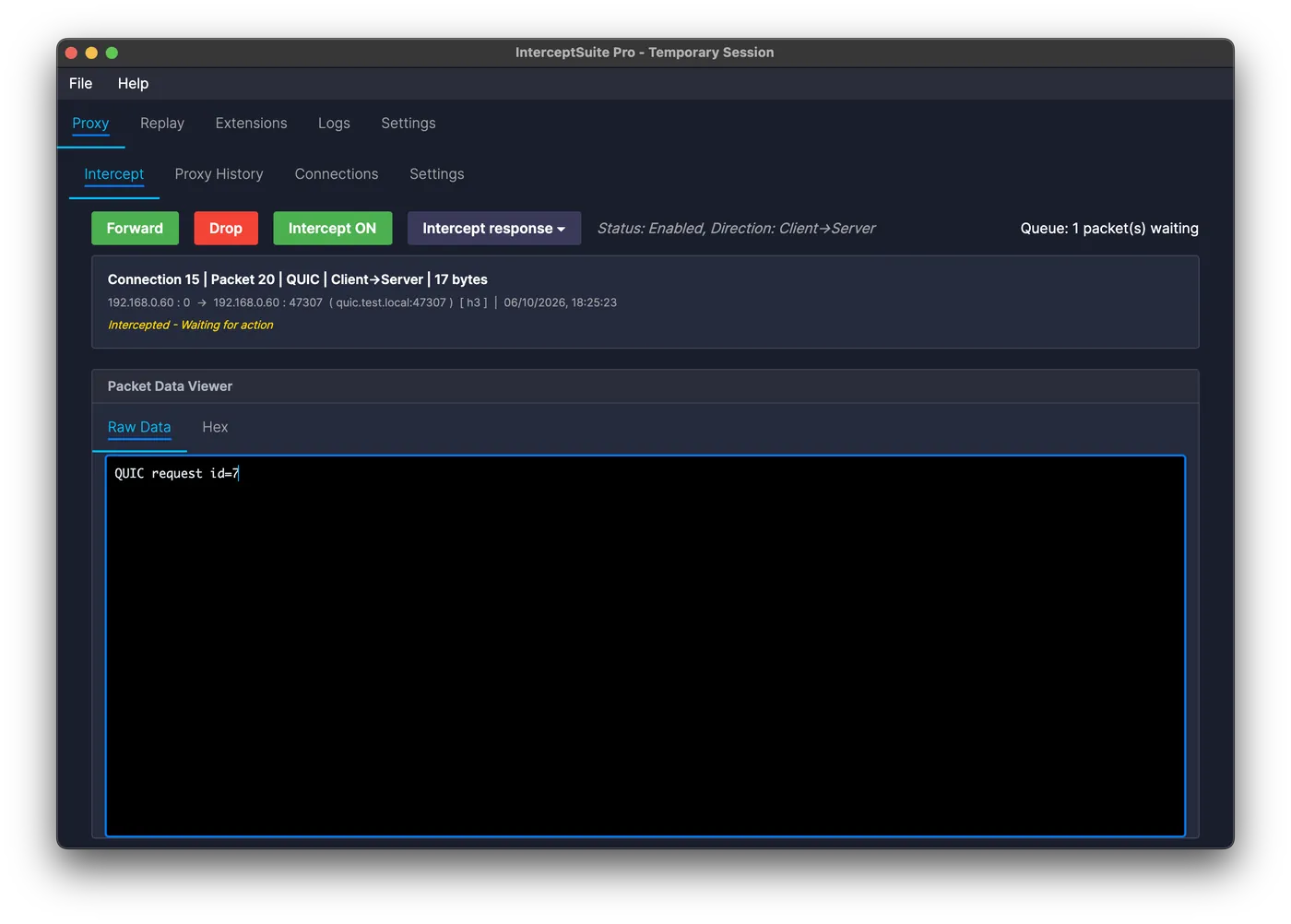
Overview
The Proxy tab provides powerful interception features that let you capture and modify network traffic in real-time. You can intercept traffic flowing in both directions:
- Client to Server -Intercept outgoing requests from your application
- Server to Client -Intercept incoming responses from the server
Getting an application's traffic in
Interception only sees traffic that reaches the proxy. There are three ways to send an application there:
| Way | Use it when |
|---|---|
| Proxy setting | The application supports SOCKS5 (127.0.0.1:4444), for example browsers and most command-line tools. |
| Traffic Redirect (Windows, built in) | The application has no proxy option, ignores the system proxy, or does its own DNS. Pick the program in Proxy > Redirect. |
| ProxyBridge (macOS, Linux, Windows) | You want the same per-application routing on macOS or Linux. |
For TLS, DTLS and QUIC, also install the CA certificate with Proxy > Settings > Install Certificate (see Proxy Settings).
Interception Controls
Forward and Drop Actions
When a packet is intercepted, you have two primary actions:
- Forward -Send the (optionally modified) packet to its intended destination
- Drop -Discard the packet so it is never delivered
Enabling Interception
By default, interception is disabled - all traffic passes through without interruption.
- Click the Intercept ON/OFF button to turn interception on.
- Choose which directions to hold and, optionally, which packets (see below).
Direction and Rules
The direction switches and the rules that decide which packets are held are in Proxy > Settings > Interception Rules, not on the Intercept tab:
| Option | Behavior |
|---|---|
| Client → Server | Holds outgoing client requests (on by default) |
| Server → Client | Holds incoming server responses (off by default) |
| Both ticked | Holds traffic in both directions |
Each direction has its own list of rules. With no rules, every packet in that direction is held; with rules, only matching packets are held. You can match on server host or IP, port, protocol, packet size, payload and Scope. See Interception Rules.
Use Intercept response on the Intercept tab to hold the next response, or all responses, of a single connection without changing the global settings.
Packet Data Viewer
The packet data viewer lets you inspect and modify the content of intercepted packets.
Default State
The viewer is inactive until a packet is intercepted. Once a packet arrives, it becomes editable and ready for inspection.
Viewing and Editing Options
Raw Tab
- Purpose: Edit the raw packet data
- Format: Plain text representation of the packet bytes
- Editable: Yes -you can modify the content before forwarding
Hex Tab
- Purpose: View and edit the packet bytes in hexadecimal
- Format: Space-separated bytes, for example
47 45 54 20 - Editable: Yes - see Hex Editor
Extension Tabs
Tabs added by extensions (DNS, HTTP/3, PostgreSQL and others) show a decoded view and, when the extension supports it, can be edited too. The extension re-encodes your edit into bytes.
Multiple Packet Handling
Intercept Packet Queue
When interception is active, InterceptSuite queues incoming packets automatically:
- Packets are paused and added to the intercept queue
- Only the first packet in the queue is displayed in the Intercept tab at a time
- A counter in the top-right shows the current queue depth
FIFO Processing
InterceptSuite uses a FIFO (First In, First Out) queue:
- The first intercepted packet is always presented first
- Packets are not automatically removed from the queue
- You must manually Forward or Drop each packet to process the next one
Queue Management Tips
- Monitor queue depth -Watch the packet counter to avoid large backlogs
- Process promptly -Holding packets too long can cause session timeouts
- Clear the queue -Disable interception to auto-forward all queued packets at once
Auto-Forward on Disable
When you turn off interception:
- All packets currently in the queue are automatically forwarded
- This is the fastest way to flush the queue without dropping traffic
Session Management and Timeouts
Connection Timeouts
Session timeout behavior depends on the protocol:
- Different protocols have different TCP session timeout durations
- Some sessions have very short timeouts; others tolerate longer holds
- Both client- and server-side timeout characteristics matter
Session Termination Handling
If you hold a packet too long:
- The server or client may terminate the session due to timeout
- Post-termination, any forwarded packets will be rejected
- InterceptSuite automatically detects session termination
- Packets that have no active session are automatically dropped
Best Practices
- Analyze quickly -Modify and forward packets before session timeouts
- Monitor session status -Use the Connection tab to check if a session is still alive
- Understand your protocols -Know the timeout characteristics of the protocols you're working with